


New website since October 2026. See what changed
Free Printer Purge Pages for Canon and Epson
A purge page is a sheet of solid color you print to clear clogged nozzles. It works the colors that need it, where a head cleaning flushes every ink at once. Ours are free, made for each printer we support, and come as PDFs in Letter, A4, 13x19 and 4x6.
On this page
What a Purge Page Does
When ink dries in a nozzle, that nozzle stops firing and you see thin lines or missing color in your prints and nozzle checks. Printing a block of a color makes every nozzle for that color fire over and over, which pulls fresh ink through and pushes the dried ink out.
Why not just run a head cleaning? A head cleaning pushes ink through every channel at once, clogged or not, and that ink goes into the printer's waste ink pad or maintenance cartridge. A purge page only uses ink in the colors you print, and you can see on paper whether it worked.
When to Use One
- A nozzle check shows gaps in one or two colors.
- Your printer has sat unused for a week or more.
- You refilled or replaced a cartridge and want fresh ink pulled through.
- As a weekly maintenance print on a printer that does not get used often. The 4x6 size is made for this.
When it is not the answer: if a color stays completely blank after three rounds, the problem is usually air in the line, a dried print head or an empty cartridge. See our guides or contact us.
How to Print a Purge Page
- Run a nozzle check from your printer's maintenance menu so you know which colors are missing.
- Download the sheet for your printer below, in the paper size you have loaded.
- Choose the paper setting. Plain paper works for most sheets. The paper setting also decides which black prints (see Which black prints).
- Turn color correction off in the print dialog if your software allows it: on Canon printers set color correction to None, on Epson printers choose Off (No Color Adjustment).
- Print at actual size (100%), not "fit to page".
- Print 1 to 3 sheets, then run another nozzle check.
- Stop after three rounds. If gaps remain, let the printer rest for a few hours and check again before trying a head cleaning.
Which Sheet to Use
All colors (ladder)
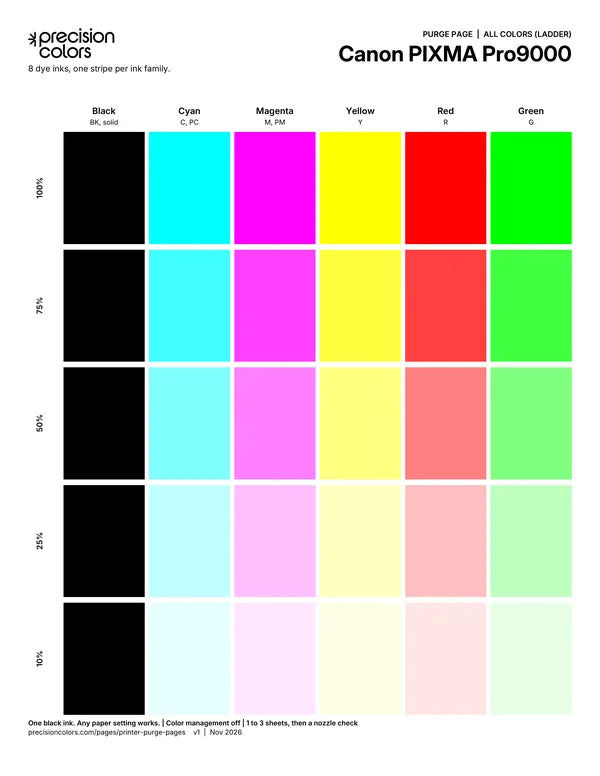
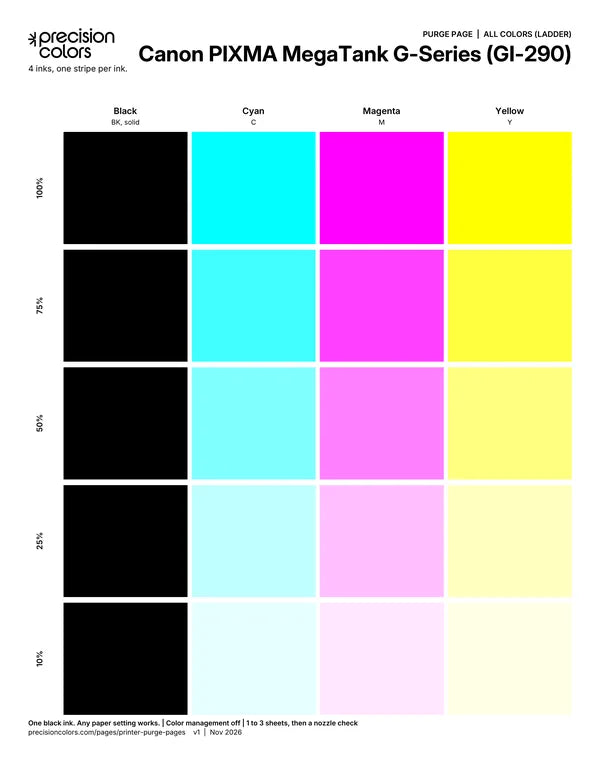
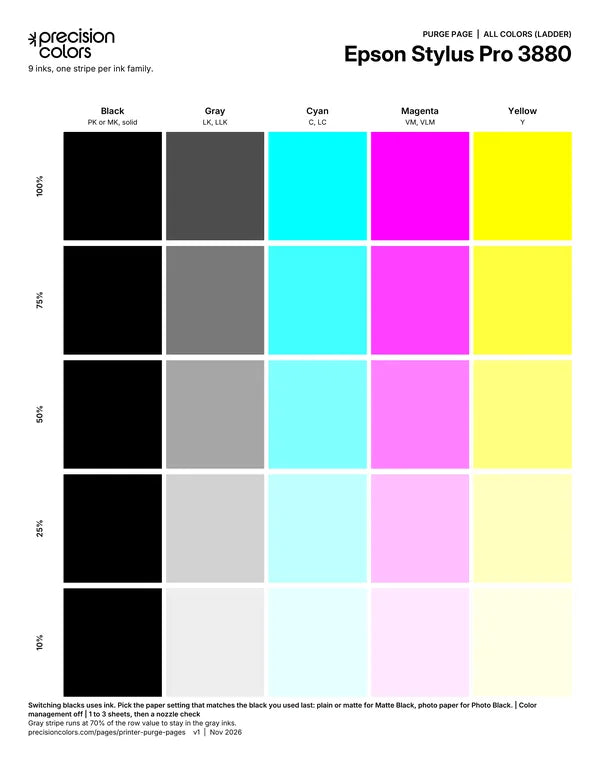
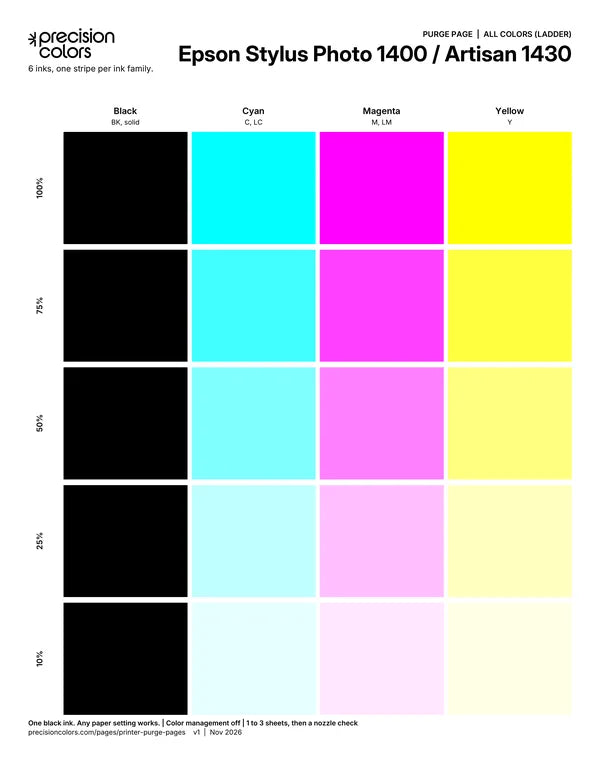
Combined sheetOne stripe for each ink your printer has, stepped from full strength down to 10%. The default choice and the one to use for maintenance.
Ladder
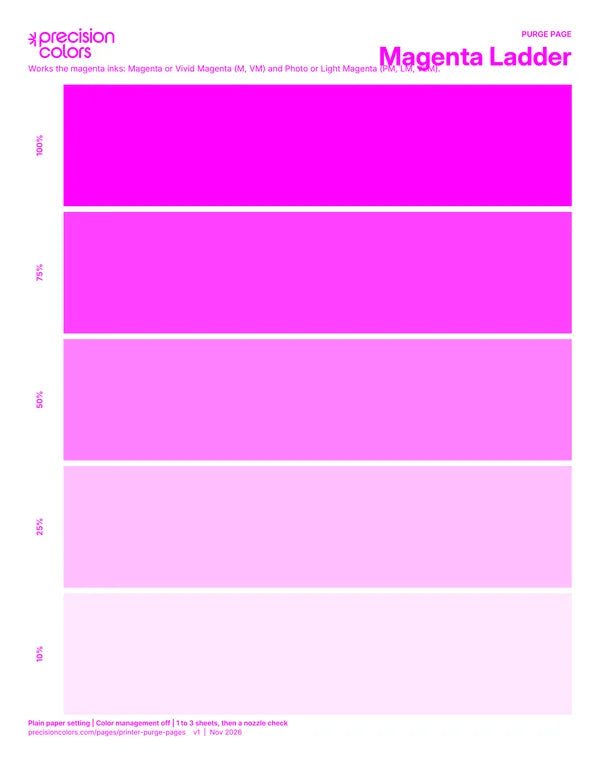
Cyan, Magenta, GrayOne color at five strengths. Strong bands work the dark ink and pale bands work the light ink (Photo Cyan, Light Magenta, Photo Gray and so on).
Solid
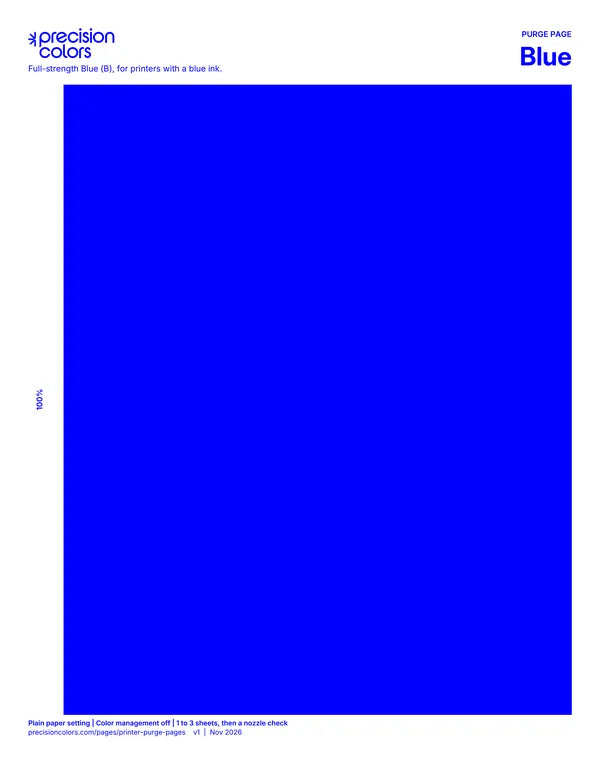
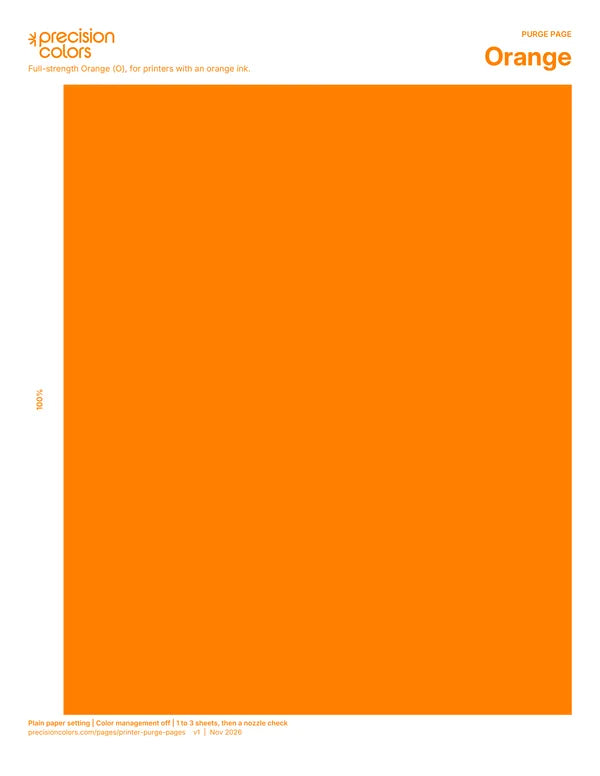
One ink, full strengthA full page of one color. For colors with a single ink, like Yellow, Red or Black, and for a clog in a dark ink only.
| What your nozzle check shows | Print this |
|---|---|
| Gaps in several colors, or the printer sat unused | Your printer's All colors (ladder) sheet |
| Gaps in Cyan or Photo/Light Cyan | Cyan Ladder |
| Gaps in Cyan only, Photo Cyan is fine | Cyan Solid |
| Gaps in Magenta or Photo/Light Magenta | Magenta Ladder (or Magenta Solid for Magenta only) |
| Gaps in Gray, Photo Gray, Light Gray, Light Black | Gray Ladder |
| Gaps in Black, Yellow, Red, Green, Blue or Orange | That color's solid sheet |
Which Black Prints
Printers with two blacks pick one based on the paper setting, not the color in the file. So the paper setting is how you choose which black to purge.
- Canon PRO-1000, PRO-1100, PRO-300, PRO-10, PRO-1, Pro9500: plain paper prints Matte Black, a photo paper setting prints Photo Black. On the PRO-1, Canon's Matte Photo Paper setting prints Photo Black, so use plain paper for Matte Black.
- Epson P400, R1900, R2000: plain or matte settings print Matte Black, photo paper settings print Photo Black.
- Epson P600, P800, R3000, Stylus Pro 3880: switching between blacks uses ink, so pick the paper setting for the black you used last.
- Epson R2880, R2400: one black is installed at a time. Match the paper setting to it.
- Epson ET-8550: plain paper uses both blacks, glossy photo settings use Photo Black only.
- Canon PGI-250 and PGI-270 printers: plain paper prints the pigment black (PGBK), photo paper prints the dye black (BK).
- Everything else has a single black, so any paper setting works.
Find Your Printer
Each printer has an All colors (ladder) sheet with a stripe for every ink it uses, labeled with its ink codes. Black prints solid in every row. The PNG pack has every sheet for that printer as 300 dpi images, for printing from Photoshop, Lightroom or QuadToneRIP.
Canon imagePROGRAF and PIXMA PRO
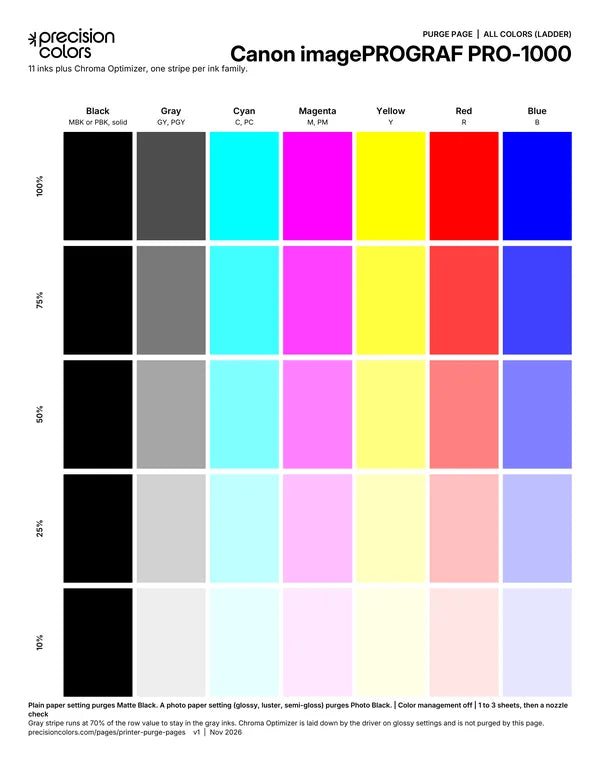
Canon imagePROGRAF PRO-1000
All colors (ladder)
Black (MBK or PBK), Gray (GY, PGY), Cyan (C, PC), Magenta (M, PM), Yellow (Y), Red (R), Blue (B)
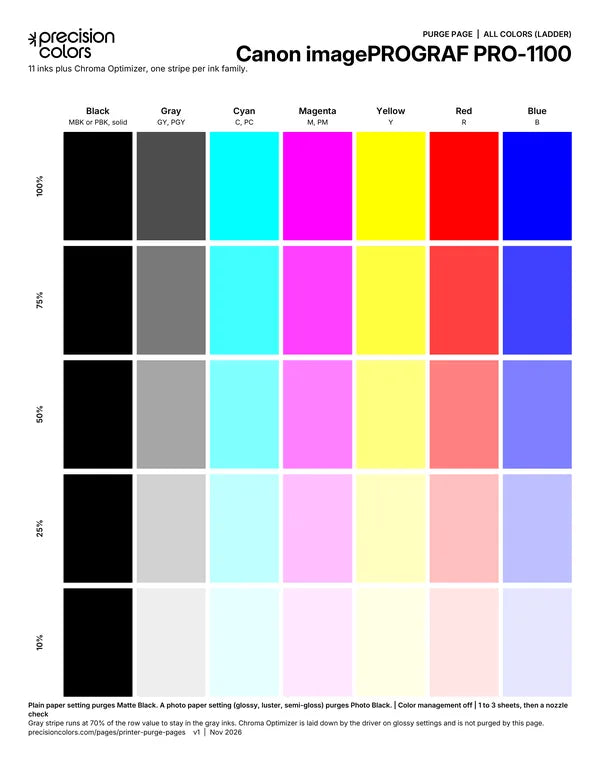
Canon imagePROGRAF PRO-1100
All colors (ladder)
Black (MBK or PBK), Gray (GY, PGY), Cyan (C, PC), Magenta (M, PM), Yellow (Y), Red (R), Blue (B)
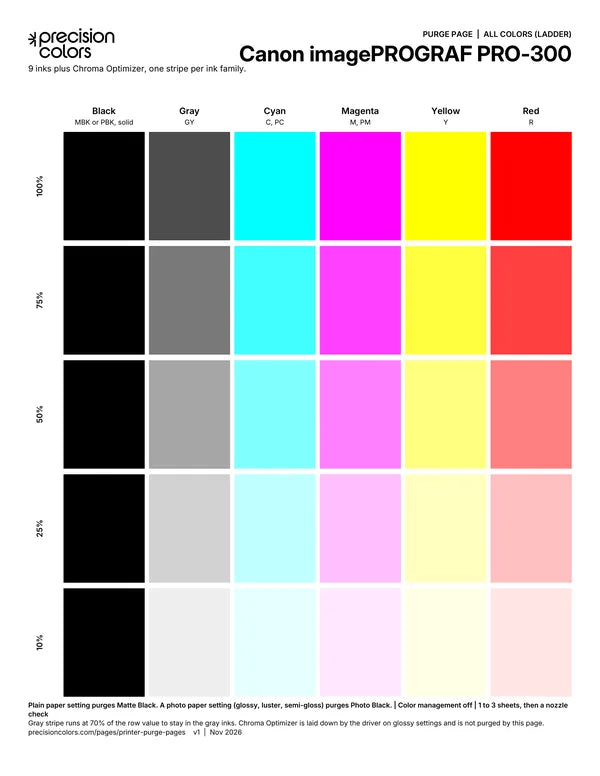
Canon imagePROGRAF PRO-300
All colors (ladder)
Black (MBK or PBK), Gray (GY), Cyan (C, PC), Magenta (M, PM), Yellow (Y), Red (R)
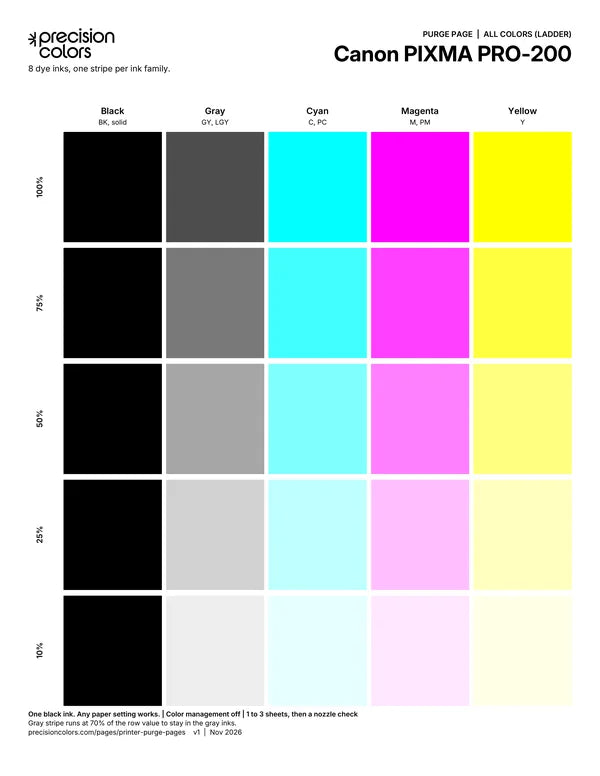
Canon PIXMA PRO-200
All colors (ladder)
Black (BK), Gray (GY, LGY), Cyan (C, PC), Magenta (M, PM), Yellow (Y)
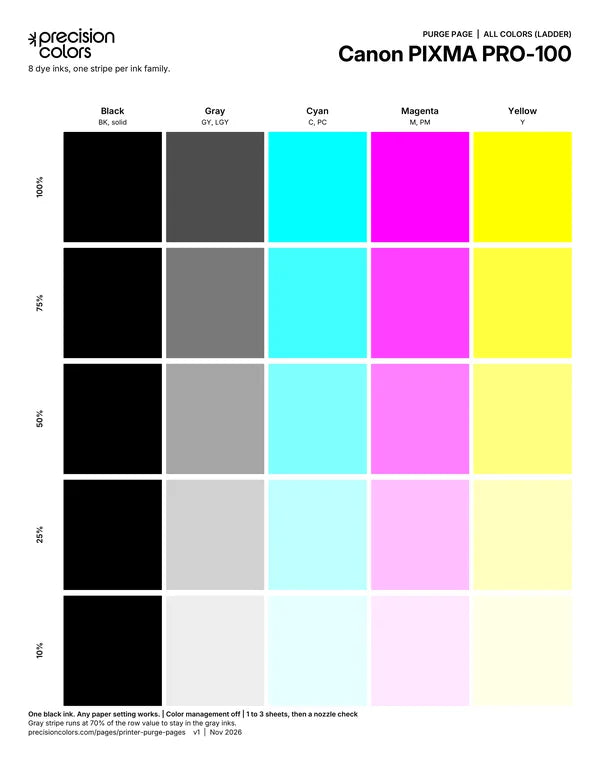
Canon PIXMA PRO-100
All colors (ladder)
Black (BK), Gray (GY, LGY), Cyan (C, PC), Magenta (M, PM), Yellow (Y)
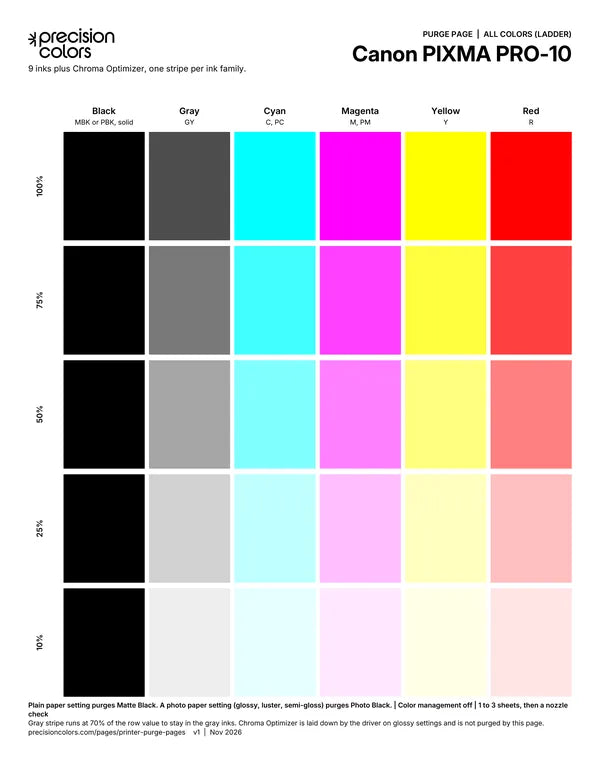
Canon PIXMA PRO-10
All colors (ladder)
Black (MBK or PBK), Gray (GY), Cyan (C, PC), Magenta (M, PM), Yellow (Y), Red (R)
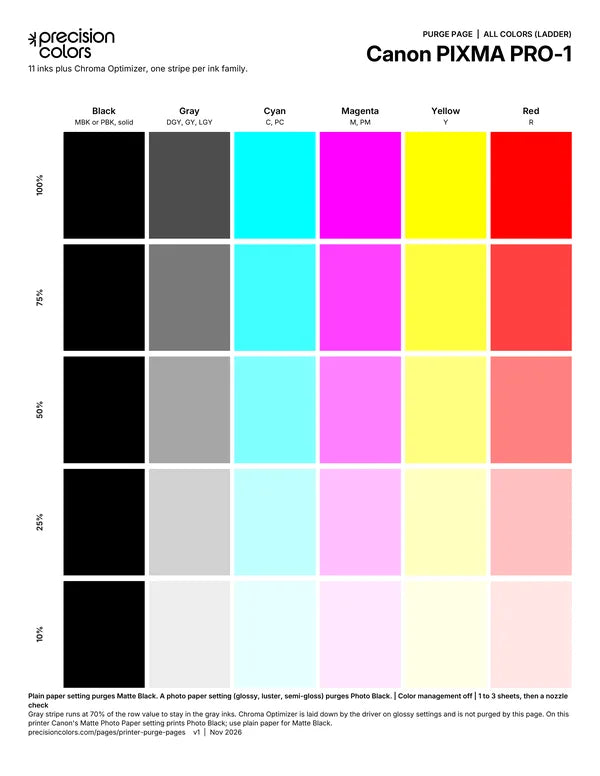
Canon PIXMA PRO-1
All colors (ladder)
Black (MBK or PBK), Gray (DGY, GY, LGY), Cyan (C, PC), Magenta (M, PM), Yellow (Y), Red (R)
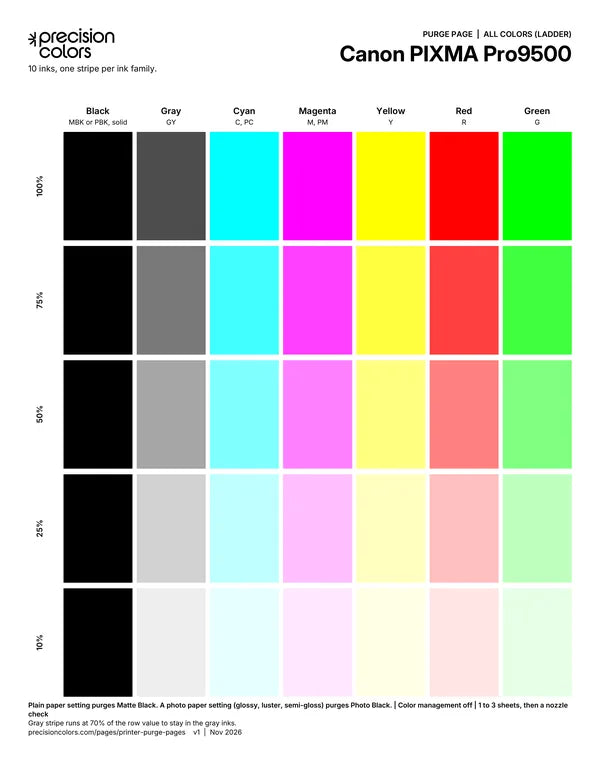
Canon PIXMA Pro9500
All colors (ladder)
Black (MBK or PBK), Gray (GY), Cyan (C, PC), Magenta (M, PM), Yellow (Y), Red (R), Green (G)
Canon PIXMA home printers
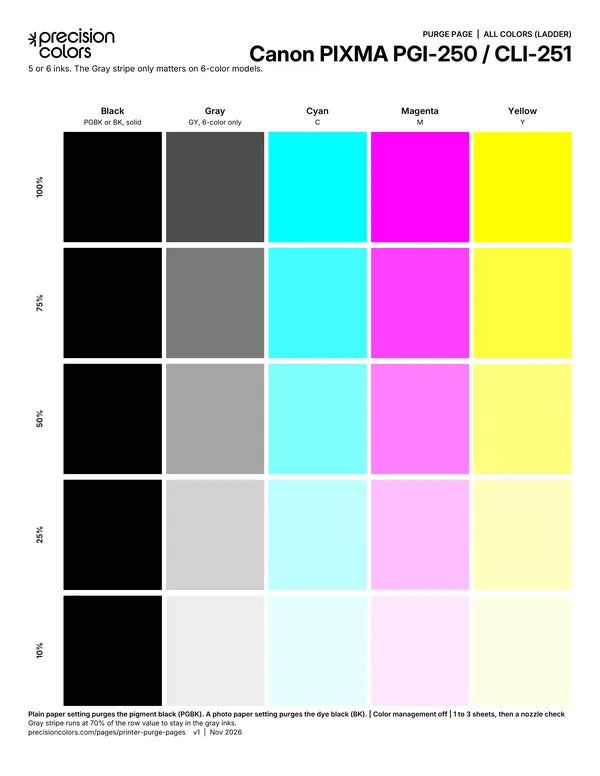
Canon PIXMA PGI-250 / CLI-251
All colors (ladder)
Black (PGBK or BK), Gray (GY, 6-color only), Cyan (C), Magenta (M), Yellow (Y)
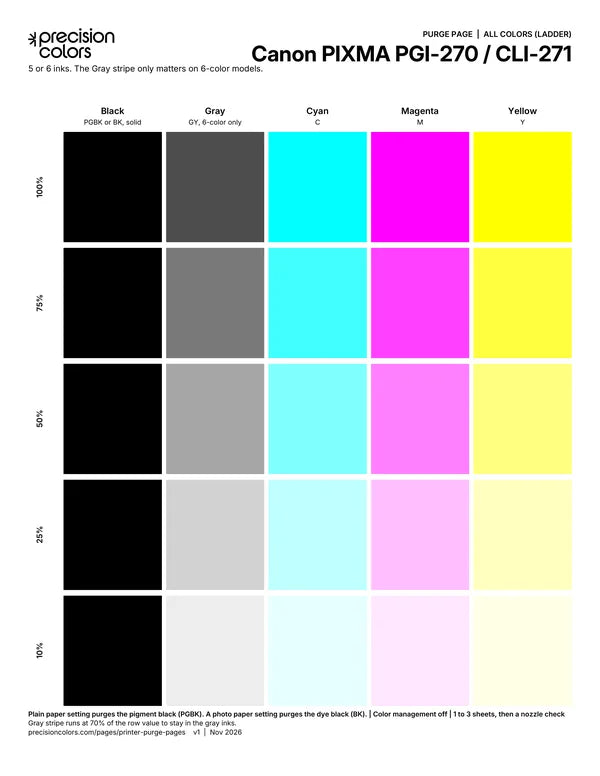
Canon PIXMA PGI-270 / CLI-271
All colors (ladder)
Black (PGBK or BK), Gray (GY, 6-color only), Cyan (C), Magenta (M), Yellow (Y)
Epson SureColor and Stylus Photo
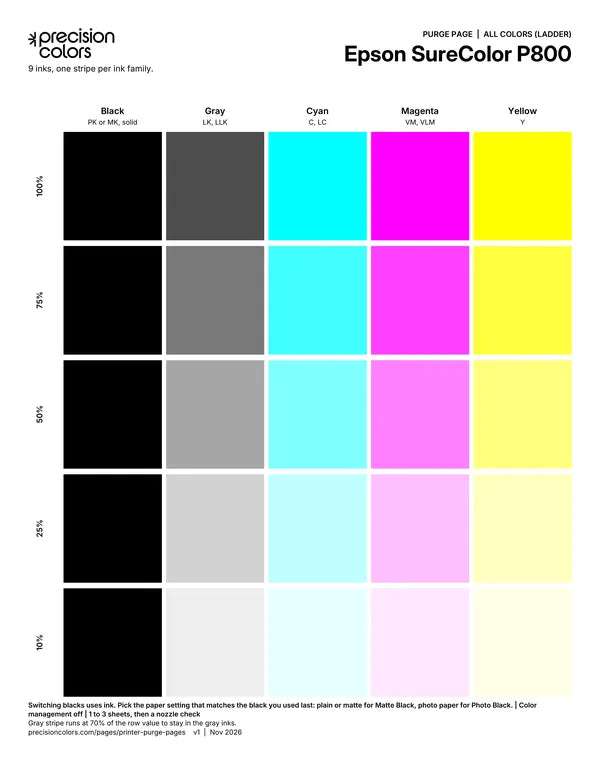
Epson SureColor P800
All colors (ladder)
Black (PK or MK), Gray (LK, LLK), Cyan (C, LC), Magenta (VM, VLM), Yellow (Y)
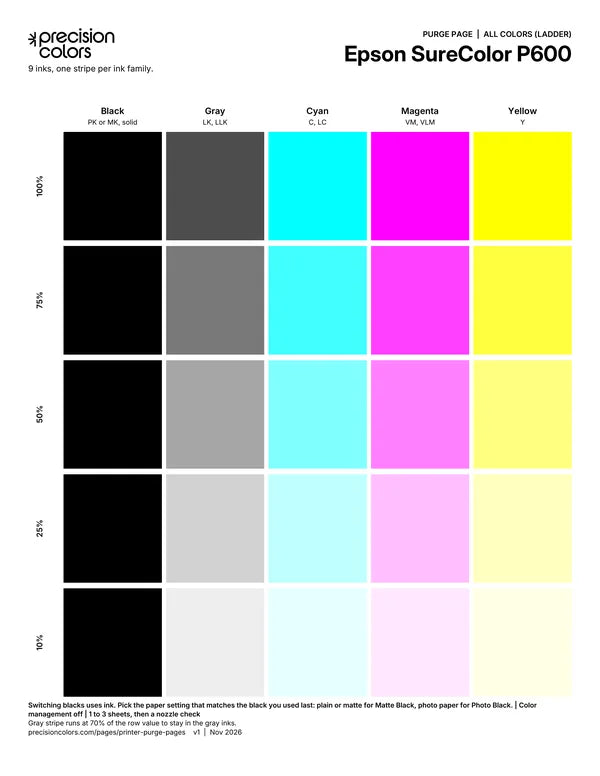
Epson SureColor P600
All colors (ladder)
Black (PK or MK), Gray (LK, LLK), Cyan (C, LC), Magenta (VM, VLM), Yellow (Y)
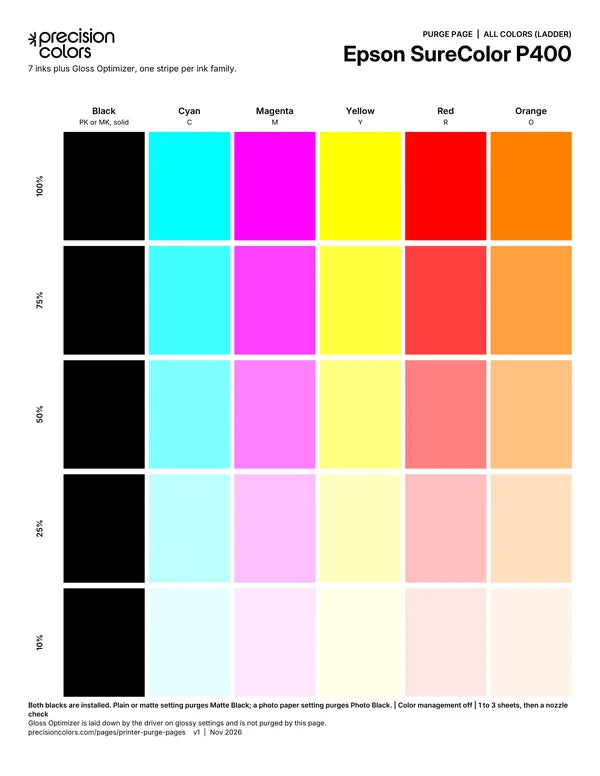
Epson SureColor P400
All colors (ladder)
Black (PK or MK), Cyan (C), Magenta (M), Yellow (Y), Red (R), Orange (O)
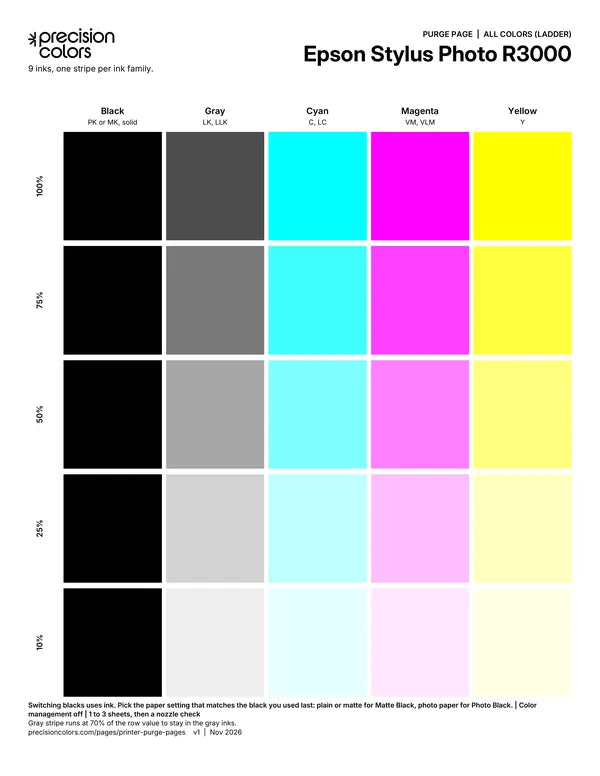
Epson Stylus Photo R3000
All colors (ladder)
Black (PK or MK), Gray (LK, LLK), Cyan (C, LC), Magenta (VM, VLM), Yellow (Y)
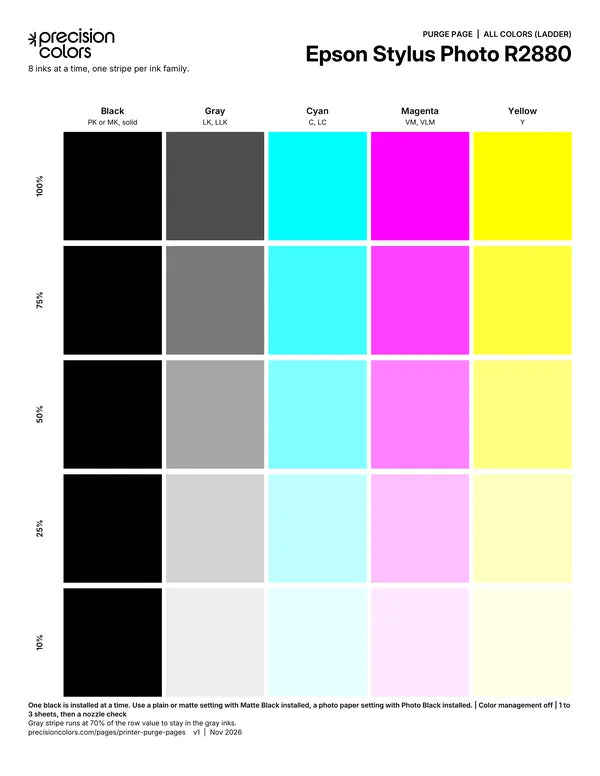
Epson Stylus Photo R2880
All colors (ladder)
Black (PK or MK), Gray (LK, LLK), Cyan (C, LC), Magenta (VM, VLM), Yellow (Y)
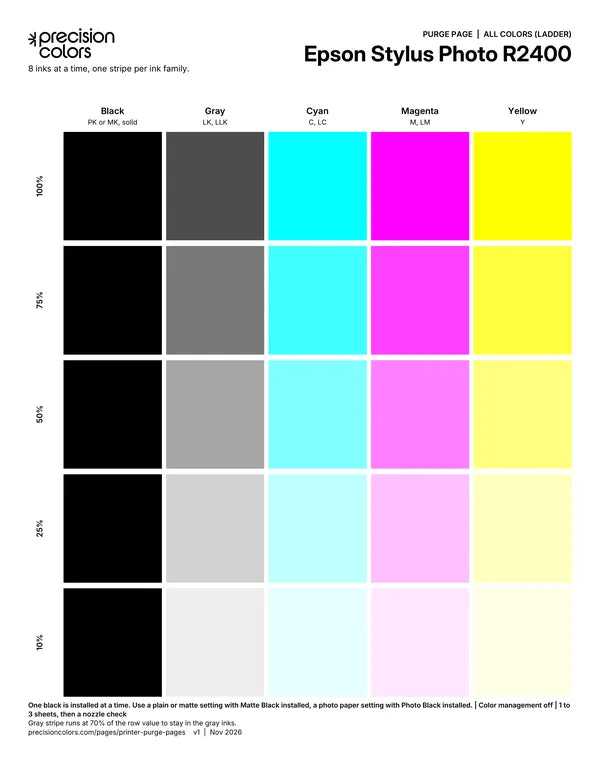
Epson Stylus Photo R2400
All colors (ladder)
Black (PK or MK), Gray (LK, LLK), Cyan (C, LC), Magenta (M, LM), Yellow (Y)
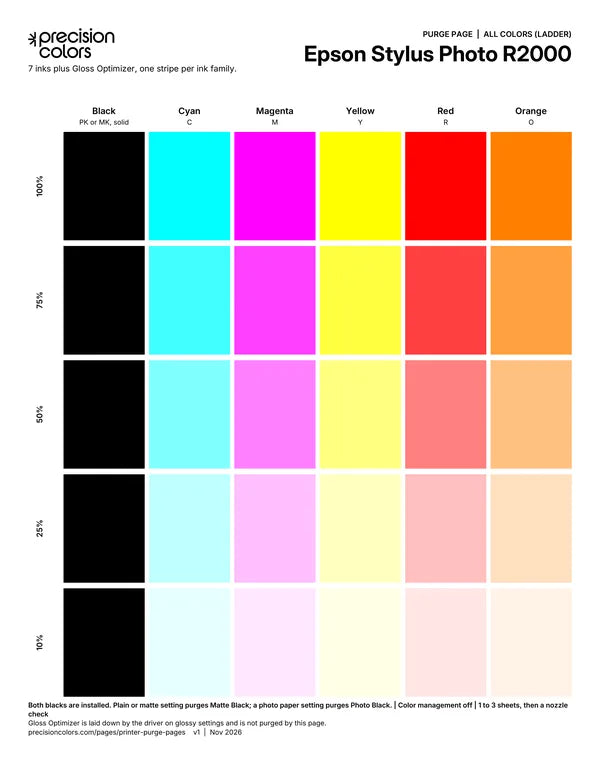
Epson Stylus Photo R2000
All colors (ladder)
Black (PK or MK), Cyan (C), Magenta (M), Yellow (Y), Red (R), Orange (O)
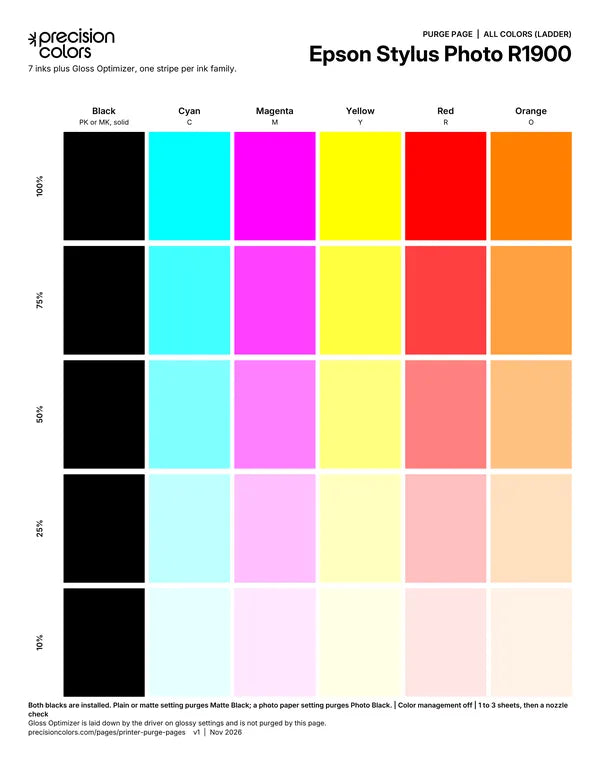
Epson Stylus Photo R1900
All colors (ladder)
Black (PK or MK), Cyan (C), Magenta (M), Yellow (Y), Red (R), Orange (O)
Epson EcoTank and Expression
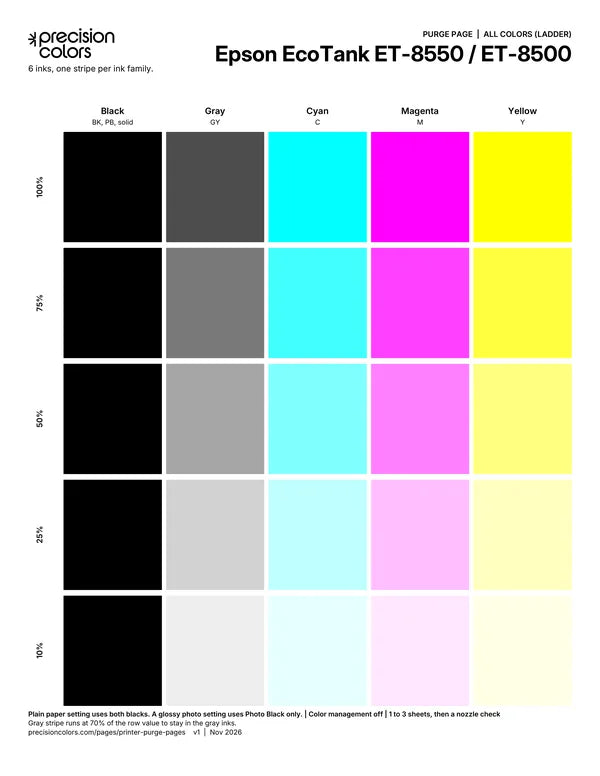
Epson EcoTank ET-8550 / ET-8500
All colors (ladder)
Black (BK, PB), Gray (GY), Cyan (C), Magenta (M), Yellow (Y)
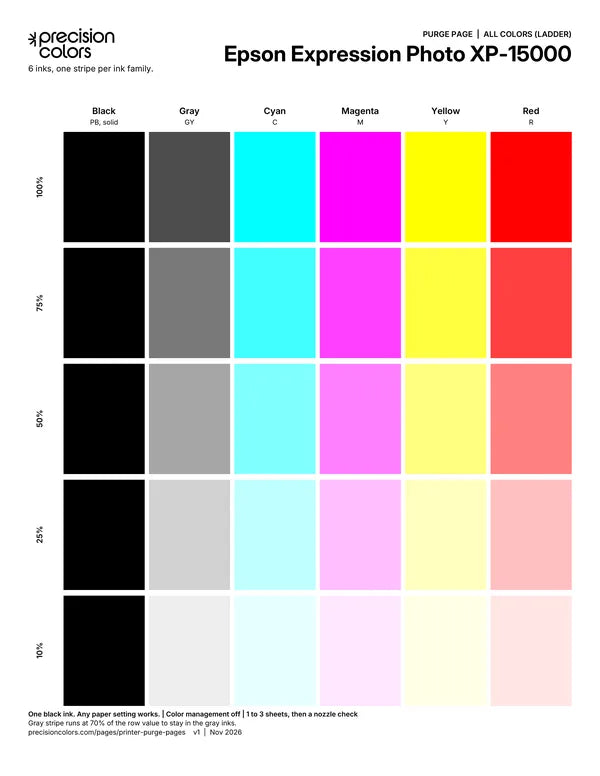
Epson Expression Photo XP-15000
All colors (ladder)
Black (PB), Gray (GY), Cyan (C), Magenta (M), Yellow (Y), Red (R)
Single-Color Sheets
These work on any printer that has the ink. Labels print in the sheet's own color, so a Cyan sheet uses no black ink for its text.
Ladder sheets
One color at five strengths, so the strong bands work the dark ink and the pale bands work the light ink.
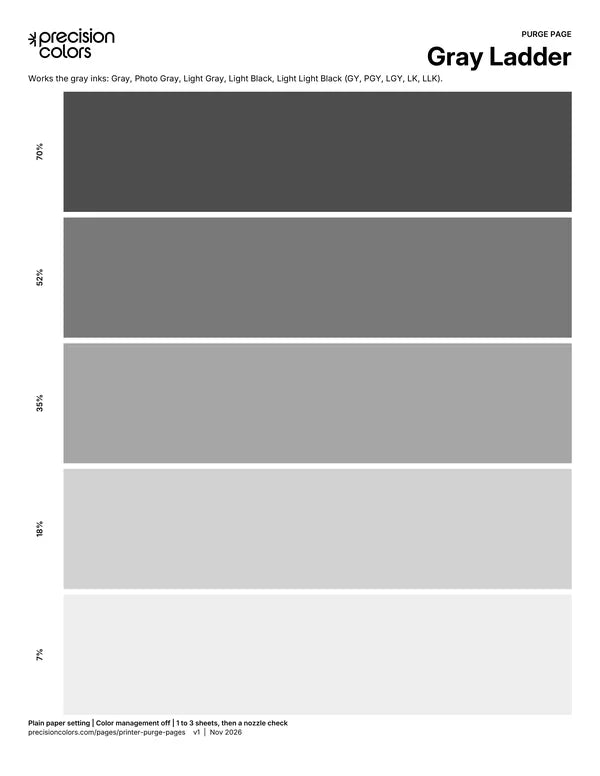
Gray Ladder
Ladder
Works the gray inks: Gray, Photo Gray, Light Gray, Light Black, Light Light Black (GY, PGY, LGY, LK, LLK).
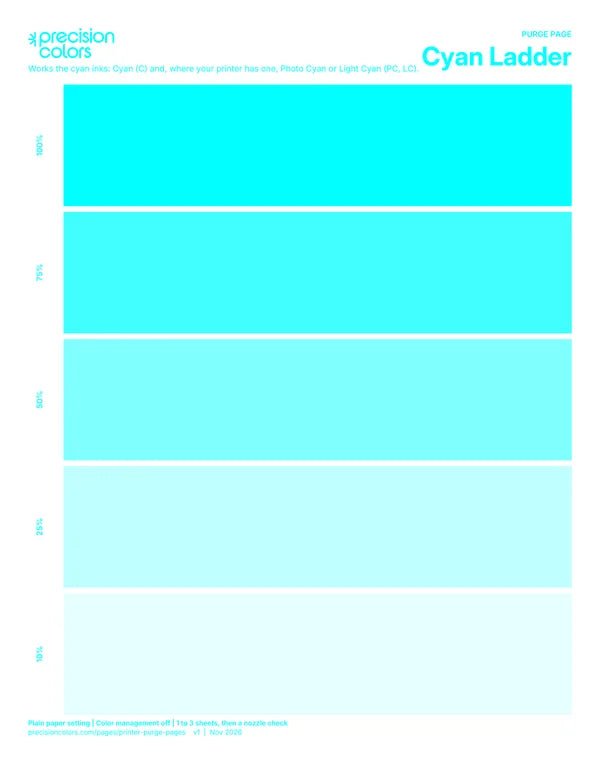
Cyan Ladder
Ladder
Works the cyan inks: Cyan (C) and, where your printer has one, Photo Cyan or Light Cyan (PC, LC).
Solid sheets
A full page of one color at full strength.
Cyan Solid
Solid
Full-strength Cyan (C). Use it when the nozzle check shows gaps in Cyan only.
Magenta Solid
Solid
Full-strength Magenta or Vivid Magenta (M, VM). Use it when the nozzle check shows gaps in Magenta only.
Frequently Asked Questions
What is a purge page?
A printable sheet of solid color that pushes ink through the print head. Printing it clears dried ink from nozzles that have stopped firing, focused on the colors on the sheet.
Is a purge page better than a head cleaning?
For a clog in one or two colors, usually yes. A head cleaning pushes ink through every channel at once and sends it to the printer's waste ink pad or maintenance cartridge. A purge page only uses ink in the colors it prints, and that ink ends up on paper you can see. If purge pages have not helped after three rounds, a head cleaning is the next step.
Does it use a lot of ink?
It uses exactly the ink you print. A full Letter sheet of solid color is a real amount, so use the 4x6 for routine maintenance and save Letter or larger for a color that is actually clogged.
Can I target just Light Cyan, or just one gray?
Not exactly. Your printer driver decides which inks make each color, so no image can fire only one ink. Our Ladder sheets print a color at five strengths, which works both the dark and the light ink of that color. If you use QuadToneRIP, you can print to single channels directly.
Which paper should I use?
Plain paper is fine and cheapest. The paper setting in the driver also chooses which black prints: plain or matte settings use Matte Black on most printers, and photo paper settings use Photo Black. Each sheet's footer says how this works for that printer.
Will it work with Canon or Epson ink, or only yours?
It works with any ink. The sheet only tells the printer what to print.
Does it clean the Chroma Optimizer or Gloss Optimizer?
No. The driver applies the optimizer on its own on glossy settings, so a purge page cannot target it. A nozzle check shows whether it is firing.
A color is still completely blank after three rounds. What now?
Stop and let the printer rest for a few hours, then run a nozzle check. A channel that stays blank is often air in the line, a dried print head or an empty or failed cartridge rather than a partial clog. Our guides cover these, or contact us and we will help.
How often should I print one?
If your printer sits unused for a week or more, a 4x6 combined sheet once a week keeps ink moving. Otherwise print one when a nozzle check shows gaps.
Purge pages are free to download and print. They focus on the colors shown, but your printer driver decides exactly which inks it uses. Last reviewed November 2026.
Browse Refill and Fix-it Guides
Still seeing gaps? Email support@precisioncolors.com or use our contact form.
Making refill ink since 2005
30-day returns on unopened items
Secure checkout
Free ICC profiles
Email support from people who refill